
Are you looking to capture a screenshot of your laptop screen but don't know how? Don't worry; it's easier than you might think. In this article, we'll provide a step-by-step guide on how to take a screenshot on laptop.
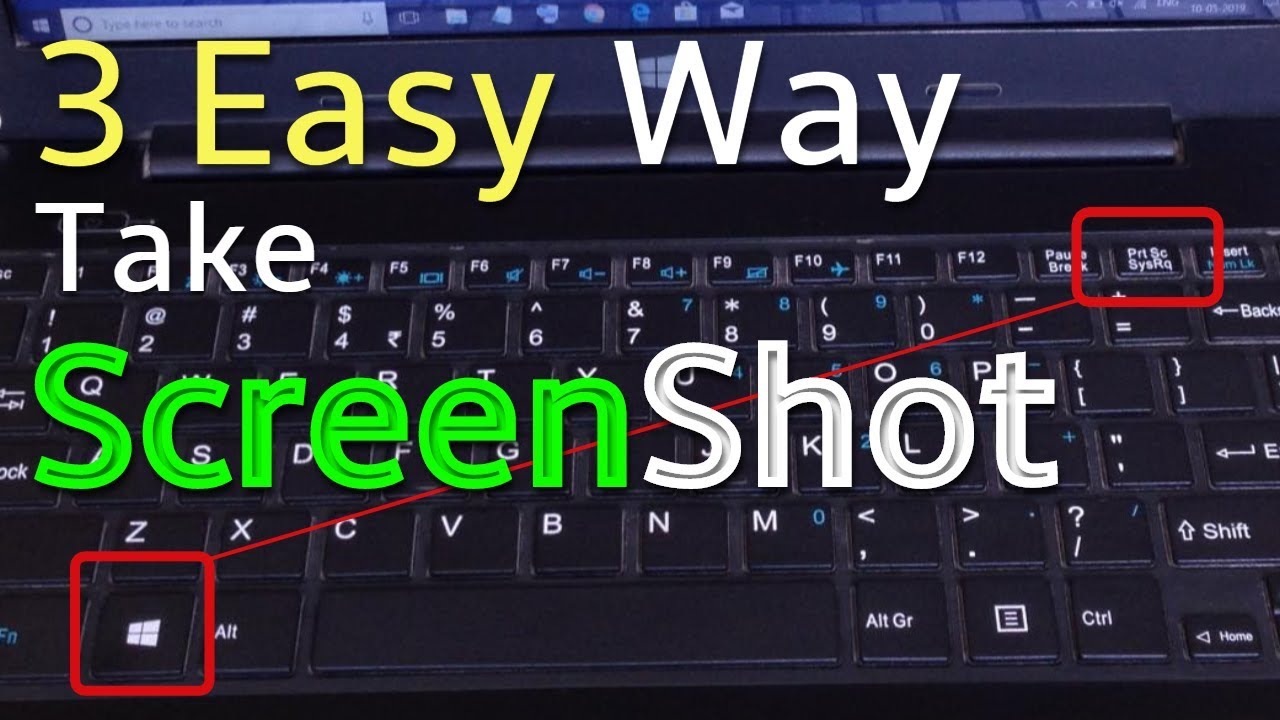
The "Print Screen" key is usually located in the upper-right corner of your laptop keyboard. It might be abbreviated as "PrtScn" or "PrntScrn," depending on your laptop model.
Step 2: Press the "Print Screen" key.
Once you have located the "Print Screen" key, simply press it to capture a screenshot of your entire laptop screen. The captured image will be saved to your clipboard.
Step 3: Paste the screenshot into an image editing software.
To access your screenshot, you need to paste it into an image editing software such as Microsoft Paint, Adobe Photoshop, or any other similar application. Open the software and press "Ctrl + V" to paste the image into the editing area.
Step 4: Save the screenshot.
Once the screenshot is pasted into the image editing software, you can make any necessary edits or crop the image to your desired size. Once you're done, simply save the image to your desired location.
Shortcut keys for taking a screenshot on a laptop
Besides the "Print Screen" key, there are other shortcut keys that you can use to take a screenshot on your laptop. Here are some of the most common:
- Windows key + Print Screen key: This combination will capture a screenshot of your entire screen and save it to your computer's default "Pictures" folder.
- Windows key + Shift + S: This combination will bring up a screen capture toolbar that allows you to capture a specific area of your screen.
- Alt + Print Screen: This combination will capture a screenshot of the current active window only.
Laptop Screenshot Tools
In addition to using the built-in "Print Screen" key or shortcut keys, you can also use various laptop screenshot tools available online. Some popular tools include Snipping Tool, Lightshot, and Greenshot. These tools allow you to capture screenshots of your laptop screen and make any necessary edits before saving them.
In conclusion, taking a screenshot on laptop is a simple process. You can use the built-in "Print Screen" key or shortcut keys, or use a laptop screenshot tool for more advanced editing options. With these tips, you'll be able to capture any screen on your laptop with ease.
 Reviewed by Keyur
on
March 26, 2023
Rating:
Reviewed by Keyur
on
March 26, 2023
Rating:
No comments: